Warung Bebas
Showing posts with label INTERNET. Show all posts

Sunday, May 31, 2015

Trick on how to Data Recovery

Backup is better than recovery; just as 'prevention is better than cure'. Always keep a backup of your crucial data. In fact, you should not try the different recovery techniques on crucial data. It is always advisable, that in such cases, you contact a recovery agency which can provide you with accurate details as to what percentage of the data is in its recoverable form. This may cost you some bucks, but then, it is worth it if the lost information is important enough.   Various software and tools are used by data recovery agencies, which have been designed by their engineers, or may have been purchased by them. For recovery that you can undertake on your own, you can use the open source software that are available for download.      The first and the most important thing that you need to keep in mind, once you have realized that you have by accident deleted some data, is not to use the drive where you had stored it. Do the preliminary checking first, before you start with the recovery process. Check the recycle bin, if you have by accident deleted the data. Perform a search operation, using the search feature of your operating system, to check out if you have placed the it into some other location.      If you are using the Windows operating system, open the folder where you had stored your data and click on tools in the menu bar. Select 'folder options' from the tools menu and click on the view tab. Select 'Show hidden files and folder'. In case the files are hidden because of some virus problems, you may be able to view them again with this process.   Recovery Techniques   If all these processes do not help you out, you can start off with the recovery techniques. By the way, you must be wondering, how can deleted data be recovered? Let me try to explain. Computers store your data in the binary format, i.e., using only the digits 0 and 1.      Once you delete some it or format the hard drive, that portion of the hard drive loses its name and identification (the word is address) and becomes free to allocate new data, but the binary digit format continues to exist in it.      The only way this binary digit format can be lost is, if some other data is saved by the computer at the same location. The other way is of course, when you want to intentionally eliminate it from your system, and you have used a file shredding software to do the same.   Depending on the file system that you have chosen, while installing your operating system, download a compatible recovery software. Some software like N-Data recovery will work well for both FAT and NTFS, while NTFS file recovery will work only for NTFS file systems.      Please make it a point to download the software into some other drive and not into the one from which you have lost your data. In fact, it is better if you download the software into another computer. Install the software in a drive that is not among the suspected list of drives, from where you think you have lost your data. Better install the software in a USB drive (pen drive or portable hard disk). Scan the suspected drives. The process will take some time and consume a lot of RAM, so avoid using the computer for any other work when the scan is in progress.   Save the recovered files (if they have been recovered at all) into a drive. If you do not get proper results, try some other software which has advanced features. There are software available which allow you to enter details like the type of file or the file extension of the file you are trying to recover.      This makes the recovery process for the software a lot simpler. The software available can be used on almost all types of memory, the hard disk, pen drive, or a portable music player.   These processes can help you recover the data, but there is no guarantee. Software are also available which will recover it in a different format and you will have to purchase a license key of the software, to reconvert your data into its original form.      Some software will recover the data for you, but won't provide you with a facility to save it, unless you buy a license key. So, choose an open source software for the recovery process, if you do not want to spend any money.
Backup is better than recovery; just as 'prevention is better than cure'. Always keep a backup of your crucial data. In fact, you should not try the different recovery techniques on crucial data. It is always advisable, that in such cases, you contact a recovery agency which can provide you with accurate details as to what percentage of the data is in its recoverable form. This may cost you some bucks, but then, it is worth it if the lost information is important enough.

Various software and tools are used by data recovery agencies, which have been designed by their engineers, or may have been purchased by them. For recovery that you can undertake on your own, you can use the open source software that are available for download.

The first and the most important thing that you need to keep in mind, once you have realized that you have by accident deleted some data, is not to use the drive where you had stored it. Do the preliminary checking first, before you start with the recovery process. Check the recycle bin, if you have by accident deleted the data. Perform a search operation, using the search feature of your operating system, to check out if you have placed the it into some other location.

If you are using the Windows operating system, open the folder where you had stored your data and click on tools in the menu bar. Select 'folder options' from the tools menu and click on the view tab. Select 'Show hidden files and folder'. In case the files are hidden because of some virus problems, you may be able to view them again with this process.

Recovery Techniques

If all these processes do not help you out, you can start off with the recovery techniques. By the way, you must be wondering, how can deleted data be recovered? Let me try to explain. Computers store your data in the binary format, i.e., using only the digits 0 and 1.

 Once you delete some it or format the hard drive, that portion of the hard drive loses its name and identification (the word is address) and becomes free to allocate new data, but the binary digit format continues to exist in it.

 The only way this binary digit format can be lost is, if some other data is saved by the computer at the same location. The other way is of course, when you want to intentionally eliminate it from your system, and you have used a file shredding software to do the same.

Depending on the file system that you have chosen, while installing your operating system, download a compatible recovery software. Some software like N-Data recovery will work well for both FAT and NTFS, while NTFS file recovery will work only for NTFS file systems.

 Please make it a point to download the software into some other drive and not into the one from which you have lost your data. In fact, it is better if you download the software into another computer. Install the software in a drive that is not among the suspected list of drives, from where you think you have lost your data. Better install the software in a USB drive (pen drive or portable hard disk). Scan the suspected drives. The process will take some time and consume a lot of RAM, so avoid using the computer for any other work when the scan is in progress.

Save the recovered files (if they have been recovered at all) into a drive. If you do not get proper results, try some other software which has advanced features. There are software available which allow you to enter details like the type of file or the file extension of the file you are trying to recover.

This makes the recovery process for the software a lot simpler. The software available can be used on almost all types of memory, the hard disk, pen drive, or a portable music player.

These processes can help you recover the data, but there is no guarantee. Software are also available which will recover it in a different format and you will have to purchase a license key of the software, to reconvert your data into its original form.

 Some software will recover the data for you, but won't provide you with a facility to save it, unless you buy a license key. So, choose an open source software for the recovery process, if you do not want to spend any money.

Saturday, May 30, 2015

6 Ways to Increase Download Speed in your pc

1.Running Programs     Shut down all the programs and applications that are running in the background, while you are downloading. This will considerably speed up the entire process. It is also advisable to set the downloads for a particular time, when you are not working on your PC; it means that there are no programs running in the background that can slow down the speed.   2.Antivirus Software     It will carry out regular updates and security scans. While these processes are going on, the entire machine will run much slower than normal. This is something that is unavoidable, so you must ensure that your downloads and scans are not functioning at the same time.        3.Internet Connection     The first thing that you need to take into consideration is the Internet connection. If you do not have broadband Internet, then you should get it, since it is much faster than the old dial-up Internet connection. If you are already on an active cable connection, ask your Internet Service Provider (ISP) about more advanced options. The Internet speed is obviously the most vital thing; the faster it is, the better will be your download speed.   4.Prioritize Downloads     If you are downloading too many files at the same time, all of them will be running at slower speeds. You need to decide whether one type of download is more important than another, and pause the rest till the most crucial one is not completed. The more you prioritize your downloads, the faster they will be completed.   5.Download Accelerator     There are certain free software downloads available over the Internet, that are known as download accelerators. These manage the active downloads on your machine, and increase its performance during downloading process. These programs alter the way by which the machines resources are distributed, which can help you in different ways. If you are looking to increase speed in BitTorrent, a download accelerator is surely a solution for you.     6.Time of Download     Sometimes, there are more people trying to download the same file as you are, during a particular time of the day. If you find out that your download speed is immensely slow, then maybe you should just try at a different time. When there is less traffic, the download speed will be noticeably higher.


1.Running Programs

Shut down all the programs and applications that are running in the background, while you are downloading. This will considerably speed up the entire process. It is also advisable to set the downloads for a particular time, when you are not working on your PC; it means that there are no programs running in the background that can slow down the speed.

2.Antivirus Software

It will carry out regular updates and security scans. While these processes are going on, the entire machine will run much slower than normal. This is something that is unavoidable, so you must ensure that your downloads and scans are not functioning at the same time.


3.Internet Connection

The first thing that you need to take into consideration is the Internet connection. If you do not have broadband Internet, then you should get it, since it is much faster than the old dial-up Internet connection. If you are already on an active cable connection, ask your Internet Service Provider (ISP) about more advanced options. The Internet speed is obviously the most vital thing; the faster it is, the better will be your download speed.

4.Prioritize Downloads

If you are downloading too many files at the same time, all of them will be running at slower speeds. You need to decide whether one type of download is more important than another, and pause the rest till the most crucial one is not completed. The more you prioritize your downloads, the faster they will be completed.

5.Download Accelerator

There are certain free software downloads available over the Internet, that are known as download accelerators. These manage the active downloads on your machine, and increase its performance during downloading process. These programs alter the way by which the machines resources are distributed, which can help you in different ways. If you are looking to increase speed in BitTorrent, a download accelerator is surely a solution for you.

6.Time of Download

Sometimes, there are more people trying to download the same file as you are, during a particular time of the day. If you find out that your download speed is immensely slow, then maybe you should just try at a different time. When there is less traffic, the download speed will be noticeably higher.

These are some of the very common computer hardware troubleshooting steps which can be followed before taking the computer to a professional hardware repair shop.


The computer hardware includes devices, such as the mouse, keyboard, monitor and printer. All are machines and are bound to face technical issues at some point or the other. However, you can perform some basic computer troubleshooting tips to make them functional. If they don't seem to work with the troubleshooting tools, you need to send them for hardware repair.

The following are some tips for the various computer hardware devices


1.Monitor

If the monitor is not working, the first thing you need to do is to ensure that it has been turned on by pressing the on/off button.
Next, check if the cable, which connects the computer monitor and the CPU is connected properly. If not, connect it in a proper manner, or remove and plug it in again.
Also, make sure that the cord, which is used to power the monitor is plugged in the UPS the right way.
If these tactics do not work, you need to check both the cables on a different monitor, which is in a working condition.
If the other monitor doesn't work with any one of the cords, that cable needs to be replaced. If the other monitor works with both cords, there is possibly a problem in your monitor.
You may also restart your computer and then check whether the monitor is working or not.
If none of these tips work out, you may have to contact a professional computer technician.


2.Mouse

If the cursor on the screen is not moving in a smooth manner, you need to check for dust or any residue on the trackball rollers, which enable the computer to accurately identify the movement of the mouse.
Remove the rear mouse cover, which will let the ball come out, clean the trackball if needed, remove the dust or residue, put the ball in again, and finally put the cover back. Check whether this works.
If the cursor doesn't move at all, check whether the mouse is correctly connected to the CPU.
If it's a USB mouse, try to use a different USB port.
There could also be the potential threat of a virus if the mouse pointer doesn't work in an acceptable manner. If so, run an updated anti-virus software and delete the virus as soon as possible.
Check if the mouse drivers are corrupted, if yes, reinstall them.


3.Keyboard

The keyboard is an important part of the computer, without which you cannot perform several tasks. It should be kept away from dust and dirt to ensure proper functioning.
If it doesn't work, you first need to check its connection with the CPU. If the connection is fine and it still does not work, simply try to connect it to another PS/2 socket or USB port (in case of a USB keyboard).
In case of wireless keyboards, special drivers are needed to be installed in the computer for proper functioning. Ensure that such drivers are installed.
Also, make a point to check whether the drivers are updated. Hold the keyboard in an inverted manner and remove the dust or debris, which is hampering the proper working of a key or a set of keys. You can also remove dust with the help of a vacuum cleaner or an air compressor.


4.Printer

If the printer doesn't work, there is a possibility of a paper jam, which normally occurs if the papers are not placed in the tray in a right manner.
In case of bigger printers, you may need to open various printer parts to get to the place where there is a paper jam. This exclusively has to be done by a professional printer technician.
Don't use tools to remove the paper jam, as some components may get damaged during the process.
If the printer doesn't turn on, the power cord may be loose, and needs to be plugged in properly. The cord which connects the printer to the computer also needs to be checked.

Wednesday, May 27, 2015

Trick on How to clear cookies in Firefox

Although cookies are very useful to navigate the Internet,but  you are  definitely need to know the basics of removing your cookie files in your machine so you can protect your privacy when you are online.   Always there are two types of cookies which are regular text browser cookies and flash cookies. To ensure maximum web browsing privacy, you have to delete both types of cookies.   Too many Internet users delete cookies which are text-based and leave flash cookies intact. This does not  protect your privacy when you are online. You have to know how to delete flash cookies, too.   There is no one standardized way to remove cookies since different browsers clear cookies using different procedures.   This article helps you manage cookies by guiding you on how to remove cookies on the Firefox browsers.   Before going through the steps below, make sure you are using the latest version of Firefox for your OS. Doing this ensures that you benefit from the latest security updates offered by your browser.   Keep in mind that the more popular a browser is, the higher the chance that it is being targeted for spyware or malware infection.   1: Look at the top end of your Firefox window and you will see a 'Firefox' button. Click it and click 'Options'   2: Click on 'Privacy'   3: You will see 'Firefox will:'.  Set it to 'Use custom settings for history.'   4: Click on the 'Show Cookies' button on the right side   5: If you want to clear cookies set by individual sites, enter the complete domain or partial domain name of the site you want to manage in the search field.  Your search will retrieve the list of cookies set for that site.Then  click 'Remove Cookie'   6: If you want to clear all cookies, click the top of your Firefox window and click on your Firefox button. Click the History menu and pick out 'Clear Recent History'  Select 'Everything' for the 'Time Range To Clear' option. Click on the downward arrow located next to 'Details'.    This will open up the list of items. Click 'Cookies' and make sure all the other items are unselected. Click on the 'Clear Now' button at the bottom. Close your 'Clear Recent History' window.

Although cookies are very useful to navigate the Internet,but  you are  definitely need to know the basics of removing your cookie files in your machine so you can protect your privacy when you are online.

Always there are two types of cookies which are regular text browser cookies and flash cookies. To ensure maximum web browsing privacy, you have to delete both types of cookies.

Too many Internet users delete cookies which are text-based and leave flash cookies intact. This does not  protect your privacy when you are online. You have to know how to delete flash cookies, too.

There is no one standardized way to remove cookies since different browsers clear cookies using different procedures.

This article helps you manage cookies by guiding you on how to remove cookies on the Firefox browsers.

Before going through the steps below, make sure you are using the latest version of Firefox for your OS. Doing this ensures that you benefit from the latest security updates offered by your browser.

Keep in mind that the more popular a browser is, the higher the chance that it is being targeted for spyware or malware infection.

1: Look at the top end of your Firefox window and you will see a 'Firefox' button. Click it and click 'Options'

2: Click on 'Privacy'

3: You will see 'Firefox will:'.  Set it to 'Use custom settings for history.'

4: Click on the 'Show Cookies' button on the right side

5: If you want to clear cookies set by individual sites, enter the complete domain or partial domain name of the site you want to manage in the search field.
Your search will retrieve the list of cookies set for that site.Then  click 'Remove Cookie'

6: If you want to clear all cookies, click the top of your Firefox window and click on your Firefox button. Click the History menu and pick out 'Clear Recent History'  Select 'Everything' for the 'Time Range To Clear' option. Click on the downward arrow located next to 'Details'.
  This will open up the list of items. Click 'Cookies' and make sure all the other items are unselected. Click on the 'Clear Now' button at the bottom. Close your 'Clear Recent History' window.

How to delete cookies in Internet Explorer

Although cookies are very useful to navigate the Internet,but  you are  definitely need to know the basics of removing your cookie files in your machine so you can protect your privacy when you are online.      Always there are two types of cookies which are regular text browser cookies and flash cookies. To ensure maximum web browsing privacy, you have to delete both types of cookies.      Too many Internet users delete cookies which are text-based and leave flash cookies intact. This does not  protect your privacy when you are online. You have to know how to delete flash cookies, too.      There is no one standardized way to remove cookies since different browsers clear cookies using different procedures. This page helps you manage cookies by guiding you on how to remove cookies on the Internet Explorer browsers.   Use the steps below to clear cookies in Internet Explorer.   1:First  Press Start   2: Click Control Panel   3: Double click Internet options   4: Under the General Tab, you will see 'Delete temporary files, history, cookies, saved passwords...' Click Delete   5: The Delete Browsing History dialog box will appear, click the 'cookies' check-box   6: Click the delete button at the bottom of the dialog box     7: You will be taken back to the Internet properties dialog box. Click 'ok'
Although cookies are very useful to navigate the Internet,but  you are  definitely need to know the basics of removing your cookie files in your machine so you can protect your privacy when you are online.

Always there are two types of cookies which are regular text browser cookies and flash cookies. To ensure maximum web browsing privacy, you have to delete both types of cookies.

Too many Internet users delete cookies which are text-based and leave flash cookies intact. This does not  protect your privacy when you are online. You have to know how to delete flash cookies, too.

There is no one standardized way to remove cookies since different browsers clear cookies using different procedures.

This page helps you manage cookies by guiding you on how to remove cookies on the Internet Explorer browsers.

Use the steps below to clear cookies in Internet Explorer.

1:First  Press Start

2: Click Control Panel

3: Double click Internet options

4: Under the General Tab, you will see 'Delete temporary files, history, cookies, saved passwords...' Click Delete

5: The Delete Browsing History dialog box will appear, click the 'cookies' check-box

6: Click the delete button at the bottom of the dialog box

7: You will be taken back to the Internet properties dialog box. Click 'ok'

Monday, September 8, 2014

Step on How to Add Favicon to your Blogger Blog

Branding your blog is a good thing and we as bloggers do not really concentrate on it.
One trick to brand your blog is adding a personalized Favicon to your blogger blogs.

The favicon is a 16 x 16 pixel image which is placed on tabs and address bar of web browsers.

By adding favicon you can have lots of advantage, one is that you are branding your blog,
when some user bookmarked your blog favicon will be there as a label and in browser history it is there too.

So below is a tutorial which will guide you how to add favicon to your blogger blog.

How to Add Favicon to your Blogger Blog

By default, we see a blogger favicon “B”, you can see in the below image.


To add our personalized favicon first we have to make it first {design your logo first},
The best way to get a favicon is make your blog initials as a favicon.
 In our blog also we have chosen “TF logo” as our favicon, but it’s entirely up to you how you want your blog favicon to be.
 Favicon should be approximately 16 x 16 pixels in size to be displayed properly.

Once you have your favicon ready, log in to your blogger blog and select layout and then edit. See below pictorial representation.
Step on How to Add Favicon to your Blogger Blog

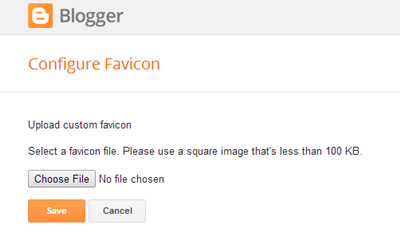
By clicking on edit a pop up window will open having option to upload favicon file to your blog.
Press choose file button and locate your favicon which you have just made it and upload it to blogger.
Now click save to complete the process.
Step on How to Add Favicon to your Blogger Blog

Step on How to Add Favicon to your Blogger Blog
this ts how look after uploading you logo

Congratulations, you have successfully added a personalized favicon to your blog.
I hope now you have no difficulty in implementing favicon to your blogger blog.

Saturday, August 30, 2014

WiFi setup on the BlackBerry Z10

WiFi setup on the BlackBerry Z10

When you are at home it makes sense to connect to your home Wi-Fi network.
Not only will connecting to Wi-Fi stop you running up any charges if you use a lot of internet
 it will also let you join your handset to other devices or computers on your network without the need for cables.

Below are the 8 step on how to Set up Wi-Fi

  1. Open Settings
  2. Choose Network Connections
  3. Ensure Flight Mode is Off
  4. Choose WI-Fi
  5. Choose the network to connect to
  6. Enter the Wireless Password key
  7. Then Choose Connect
  8.  Wi-Fi will now connect and show Connected

9 Step on how to Edit a Wi-Fi Connection

Editing a Wi-Fi connection will let you change things like your saved wireless password
  1. Open Settings
  2. Choose Network Connections
  3. Ensure Flight Mode is Off
  4. Choose Wi-Fi
  5. Choose Saved
  6. Select the Wi-Fi you wish to edit
  7. Alter the settings as required.
  8. Once complete choose Save and Close
  9.  Your Wi-Fi settings should now be updated.

steps to follow when you want to Delete your Wi-Fi Profile

  1. Open Settings
  2. Choose Network Connections
  3. Ensure Flight Mode is Off
  4. Choose Wi-Fi
  5. Choose Saved
  6. Select the Wi-Fi you wish to delete
  7. Choose Delete
  8. Confirm you wish to delete the profile.

Steps on how to Backup and restore your BlackBerry Z10

Steps on how to Backup and restore your BlackBerry Z10

BlackBerry Link is the link between your BlackBerry  device and your PC or Mac. You can sync your device to the desktop either through a cable or over the air through a Wi-Fi network.
When you are using a BlackBerry Link it allows you to:
  • Sync music , videos, pictures and documents between your BlackBerry device and your computer using a USB cable or Wi-Fi network
  • Backup and Restore your device data.
  • Transfer supported settings and data to your device
  • Manage multiple devices that use the same BlackBerry ID
  • Update or Reload the device software
  • Set up a device to remotely access files stored on the PC via the Internet and BBI.

Install BlackBerry Link


Install BlackBerry Link

Steps To install BlackBerry Link:
  1. Download BlackBerry Link
  2. Install BlackBerry Link
  3. Open BlackBerry Link
  4. Give your computer a name
  5. Set up the libraries you want BlackBerry Link to see
  6. Sign in with your BlackBerry ID

Backup a BlackBerry 10 Device

Backup a BlackBerry 10 Device

To back up your BlackBerry 10 device or Playbook running BlackBerry 10
  1. Open BlackBerry Link
  2. Click on the device along the bottom.
  3. Click on the Settings icon
  4. Click on Backup Now

Restore Data on the Z10

Restore Data on the Z10

You can restore an entire device or just part of the data, as in previous versions of BlackBerry Desktop Software. To restore your device to a previous backup follow the step below
  1. Open BlackBerry Link
  2. Click on the device along the bottom
  3. Click on the Settings icon
  4. Click on Restore device data
  5. Select Restore from backup file
  6. Select the data to restore
  7. Click Restore

Reload a non-working Z10

BB Z10 - backup restore restore 2

To reload the operating system for a device which is unresponsive
  1. Open BlackBerry Link
  2. Click on the device along the bottom
  3. Click on the Settings icon
  4. Click on Restore device data
  5. Select Restore from backup file or Restore to factory settings
  6. Click Restore now
  7. DONE!!!!!

How to update the operating system (OS) on the BlackBerry Z10.!

How to update the operating system (OS) on the BlackBerry Z10.!

New OS updates is now available for your handset. To make sure your Z10 stays current, follow this guide to check for and install any relevant software updates.
You can update your device in two ways, over the air and via BlackBerry Link.
To update Over the Air (OTA)
Open Settings
  1. Choose Software updates
  2. Select Check for updates
NOTE THAT: Updates can be very large files. We recommend you connect to a Wi-Fi network before doing a software update to avoid data charges and guarantee a stable, fast connection.

To update through BlackBerry Link:

  1. Open BlackBerry Link
  2. Connect the phone via USB
  3. Select the device along the bottom
  4. Then Click the Settings icon 
  5. Click Install update

Friday, August 8, 2014

Steps on how to add an input language on Windows Vista

Steps on how to add an  input  language  on  Windows  Vista

You can edit your documents in multiple languages by changing the language in which you type. Input languages are included with Windows but you need to add them to your list of languages before you can use them.

The following are simple Steps on how to add an input language on Windows Vista

1. You need to Open Regional and Language Options by clicking the Start button , clicking Control Panel, clicking Clock, Language, and Region, and then clicking Regional and Language Options

2. Click the Keyboards and Languages tab and then click Change keyboards

3. Under Installed services, click Add

4. Double-click the language you want to add, double-click the text services you want to add, select the text services options you want to add, and then click OK

Sunday, April 27, 2014

know how to plan Internet Cafe Business..!!

how to plan Internet Cafe Business..!!
Have you ever noted that the number of Internet cafes that are in and around your street Like stationary center and barber shop, the web business also seems to be flourishing. Every other corner of your city you would find an Internet cafe. The bottom line is that you pay them and they would let you surf the web from their computers. So this is the basic outline of what this business is based on. Now I am sure if you are a customer your interest and curiosity would now take a different turn and move towards knowing where a certain cafe in a certain location is and the services that they offer but if you are an entrepreneur who wants to set up an Internet cafe business then this is the best idear for you.

1. GOOD ARRANGED PLAN

The first step towards setting up a business is planning it thoroughly with all the details in mind like the location, finances, services you want to offer and the reason that people would come to your internet cafe. You also have to understand the profit that you can make and the profit that you want to make. I am sure if this is something that you have always thought of setting up, you must have had ample thoughts on how you want to structure these things. So this is time to organize those thoughts. One thing that you should remember while planning is to be in your limits, do not make a plan that is over ambitious because the moment you go beyond your limits, you will ensure its failure. Business is mathematics and not athletics.

2. JUST CHECK THE VIABILITY OF THE PLAN

Planning is just the beginning, the plans that you make should be put down on paper and then you would be able to see the loopholes that you need to mend and the changes that you need to bring about. This also makes you organized and if you have a written document, which has all your plans in a practical and vivid way, it would make an impression on the people you approach, be it for or any reason. Also do a proper market research so that you know the way to gains and pains so that you can distribute your finances.
3. ARRANGE THE FINANCE

Once you are done with all the detailing and once you know the blueprint by heart it would be possible for you to visualize things and work towards them. So the next step that comes is the finances that would be required. If you have the finances for investment, nothing like it but of you do nit have, even then it would not very tough because nowadays getting finance from a reputed institution is not a tough nut to crack, it just needs organization and confidence. Any bank that you approach would like to have a look at your business plan, which is a technical jargon for the plans that you have written on paper with a little formatting. Doing your homework is a must when you want people to trust you. Trust only comes for people who are responsible and clear about their ideas. Carry the financial statements and inform the bank authorities regarding the time period you would take to repay the money. Present your plan with confidence and win the situation.

4. NOW START WORKING ON YOUR PLAN

Once the finances are approved, start working upon your plan because an extended time to set up the business may falsify all your calculations and market research since the market is fluctuating and inconstant. Thus you need to work faster to sell the things that you have planned to.

So these were the steps that you can follow before setting up the business but you have to be care even after setting up your business.Now days the web has something new to offer everyday and if you do not keep your business updated and keep on offering the old and outdated services, very soon you would lose your customers to a better Internet cafe.
READ MORE...!!!

These are the basic Steps in Creating an Online Business...!!!


These are best Online Business Ideas...!!!


How to Approve YoUr Google Adsense Account with Blogger,


ENJOY!!

Wednesday, March 5, 2014

INTERNET

INTERNET                                                                                                                                             Is the wireless mode of communication in which one can receive  transmit information that can be used for single or multiple operation. It was first developed in the U.S. by top universities of united state  who were working on the same contract and wanted to share their research  data without using too much time. They were faxing information back and forth and then retyping it until they came up with a piece of software called Unix to Unix Copy Program or UUCP .                                                                                                                                                                      
The Internet was born and has mushroomed outward from that point and there are 3 main  things that are necessary to "get on the net" with a full graphic interface (picture, sounds and  animation)                                                                                                                                                     1.COMPUTER                                                                                                                                             Is electronic devices that manipulates information data.Preferably with a fast processor and lots of memo                                                                                                     2. MODEM                                                                                                                                               Is an electronic device that makes possible the transition of data. Preferably high speed digital (56,000 baud if high speed is not available)                                                                                                                              3.INTERNET SERVICES PROVIDER                                                                                                 Is a service that connects your home or office computer to the Internet Browser Software - often installed with your operating system or can be downloaded off the Internet

Once you are connected you will have access to Email , the World Wide Web ( WWW ), Social Networks , File Transfer Protocol ( ftp ), Instant messaging , Search Engines , E commerce and other Internet Services.

Saturday, March 1, 2014

ROLE OF INTERNET IN EDUCATION

Internet is a global computer network providing a variety of information  and communication facilities which help to to simplify mans work, Communication and information are the two most important uses of the Internet. Secondly, information can be updated at any time and for any number of times, which helps in studies and better understanding.
LEARNING PROJECT                                                                                                                      The Internet communication can be more useful for completing projects in different studies level. As the Internet is an sources of information, covering at least all subjects known to man,any one can find information or research work required for one's projects. Going through the information on the Internet is definitely faster than reading a lot of book on the subject..
USING MULTIMEDIA                                                                                                                        IT is believed that visual data has a greater affect on learning and memorizing than plain text. so images, graphics, animation and pictures have a greater appeal than a plain textbook. Using multimedia and Internet provides an opportunity for children to gain knowledge about a particular subject in depth. Students can now see the actual photographs of different animal species
EASY EDUCATION SYSTEM                                                                                                        Every part of the education system is simplified because of the Internet. You can now view your prospective educational institute, look up for courses, enroll to online courses, take classes, research, see your results, and even look for job prospects on the Internet. Therefore, the scope of Internet in education is very wide and equal to all.

AFFORDABLE KNOWLEDGE
Investing in research material may be tedious and unaffordable for some. But, now, thanks to the Internet, we have content websites, web encyclopedias, and dictionaries whenever we want them. Today, able as well as less-able students can be benefited to the sea of knowledge through the Internet. University courses and learning is now easy for people belonging to all strata of the society with the help of online courses.

ONLINE LEARNING
Another positive effect of Internet in education is the onset of distance education or online learning. With this facility, you can take up short-term courses with the course material available online, learn, and give exams. One of the benefits of online learning is that people from any part of the world can gain knowledge on different subjects, complete courses.
NEWS
All the latest news are constantly updated on the Internet on news sites. Students learning politics, can have an access to all the current affairs through the Internet in the school campus, at home or at any other place. Historical accounts like speeches are also easily available on the Internet in detailed and accurate versions.
ENCYCLOPEDIA
Sometimes, an encyclopedia may not always be available to students and they may have difficulty in gaining access to the books in the library. In that case, the encyclopedia of various subjects available on the Internet can be helpful. This is more useful for students who belong to communities not having English as their mother tongue. Kids and younger children can also be benefited by the Internet by using the pictures and videos  which is one of the major advantages, when comparing textbooks versus computer teaching.

EASY CONTACT
As mentioned above, communication is one of the biggest advantages of the Internet in education. Students can contact other students or their teachers via the E-mail if they have queries about any information. Sharing of information, discussions on a particular subject, etc., can be easily carried out using the Internet. At the same time, teachers can also contact parents and guardians easily using Internet
 

ONE TECHNO Copyright © 2012 Fast Loading -- Powered by Blogger