Warung Bebas
Showing posts with label SAMSUNG. Show all posts

Tuesday, June 2, 2015

How to Hard Reset and Factory Reset Samsung Galaxy S5 Duos

If your Samsung Galaxy S5 Duos phone has slowed down considerably or isn't working properly, it may be necessary to proceed to a reset.     Before you try the factory reset or hard reset on your device, make sure that you have backup your important files. Restoring the default settings or factory reset your device will delete all your existing files and will go back to its initial state.   Factory Reset:   1. On your Home screen, tap on MENU icon.   2. Select "Settings", then scroll down and tap "Backup and reset" option.   3. Then tap on “Factory Data Reset”.   4. Read warning carefully before tapping the “Reset Device”.   5. If you want to proceed in resetting your device, tap on “Delete All” to confirm the Reset.   NB:  Now, you just need to wait while your device is resetting. It should reboot itself and you will have a new start on your device.   You may also use the shortcut method using the code: Enter *2767*3855# on your device.    Hard Reset:   1. Turn off your device.    2. Then press and hold Volume Down + Home Button + Power On.   3. Wait for a few seconds until the Factory reset menu appears.   4. Select "wipe data/factory reset" by using the Volume Down button.   5.You are done!!
If your Samsung Galaxy S5 Duos phone has slowed down considerably or isn't working properly, it may be necessary to proceed to a reset.

Before you try the factory reset or hard reset on your device, make sure that you have backup your important files. Restoring the default settings or factory reset your device will delete all your existing files and will go back to its initial state.

Factory Reset:


1. On your Home screen, tap on MENU icon.

2. Select "Settings", then scroll down and tap "Backup and reset" option.

3. Then tap on “Factory Data Reset”.

4. Read warning carefully before tapping the “Reset Device”.

5. If you want to proceed in resetting your device, tap on “Delete All” to confirm the Reset.

NB:
Now, you just need to wait while your device is resetting. It should reboot itself and you will have a new start on your device.

You may also use the shortcut method using the code: Enter *2767*3855# on your device.


Hard Reset:

1. Turn off your device.

 2. Then press and hold Volume Down + Home Button + Power On.


3. Wait for a few seconds until the Factory reset menu appears.


4. Select "wipe data/factory reset" by using the Volume Down button.

5.You are done!!

How to Hard Reset and Factory Reset Samsung Galaxy Grand Max SM-G720N0

Hard resetting and factory resitting your Samsung J1 SM-J100F device helps to format the device system. It’s always advisable to hard reset your android device whenever you notice much lag or freezes on your device, or maybe, your device got bricked or has encountered so many unexceptional errors, then it would be okay for you to take a fresh start with the device.   Before you try the factory reset or hard reset on your device, make sure that you have backup your important files. Restoring the default settings or factory reset your device will delete all your existing files and will go back to its initial state.   Factory Reset:   1. On your Home screen, tap on MENU icon.   2. Select "Settings", then scroll down and tap "Backup and reset" option.   3. Then tap on “Factory Data Reset”.   4. Read warning carefully before tapping the “Reset Device”.   5. If you want to proceed in resetting your device, tap on “Delete All” to confirm the Reset.   NB:  Now, you just need to wait while your device is resetting. It should reboot itself and you will have a new start on your device.   You may also use the shortcut method using the code: Enter *2767*3855# on your device.    Hard Reset:   1. Turn off your device.    2. Then press and hold Volume Down + Home Button + Power On.   3. Wait for a few seconds until the Factory reset menu appears.   4. Select "wipe data/factory reset" by using the Volume Down button.   5.You are done!!

Hard resetting and factory resitting your Samsung J1 SM-J100F device helps to format the device system. It’s always advisable to hard reset your android device whenever you notice much lag or freezes on your device, or maybe, your device got bricked or has encountered so many unexceptional errors, then it would be okay for you to take a fresh start with the device.

Before you try the factory reset or hard reset on your device, make sure that you have backup your important files. Restoring the default settings or factory reset your device will delete all your existing files and will go back to its initial state.

Factory Reset:


1. On your Home screen, tap on MENU icon.

2. Select "Settings", then scroll down and tap "Backup and reset" option.

3. Then tap on “Factory Data Reset”.

4. Read warning carefully before tapping the “Reset Device”.

5. If you want to proceed in resetting your device, tap on “Delete All” to confirm the Reset.

NB:
Now, you just need to wait while your device is resetting. It should reboot itself and you will have a new start on your device.

You may also use the shortcut method using the code: Enter *2767*3855# on your device.


Hard Reset:

1. Turn off your device.

 2. Then press and hold Volume Down + Home Button + Power On.


3. Wait for a few seconds until the Factory reset menu appears.


4. Select "wipe data/factory reset" by using the Volume Down button.

5.You are done!!

Monday, June 1, 2015

How to Hard Reset and Factory Reset Samsung Win 2

Hard resetting and factory resitting your Samsung Win 2 device helps to format the device system. It’s always advisable to hard reset your android device whenever you notice much lag or freezes on your device, or maybe, your device got bricked or has encountered so many unexceptional errors, then it would be okay for you to take a fresh start with the device.     Before you try the factory reset or hard reset on your device, make sure that you have backup your important files. Restoring the default settings or factory reset your device will delete all your existing files and will go back to its initial state.   Factory Reset:   1. On your Home screen, tap on MENU icon.   2. Select "Settings", then scroll down and tap "Backup and reset" option.   3. Then tap on “Factory Data Reset”.   4. Read warning carefully before tapping the “Reset Device”.   5. If you want to proceed in resetting your device, tap on “Delete All” to confirm the Reset.   NB:  Now, you just need to wait while your device is resetting. It should reboot itself and you will have a new start on your device.   You may also use the shortcut method using the code: Enter *2767*3855# on your device.    Hard Reset:   1. Turn off your device.    2. Then press and hold Volume Down + Home Button + Power On.   3. Wait for a few seconds until the Factory reset menu appears.   4. Select "wipe data/factory reset" by using the Volume Down button.   5.You are done!!
Hard resetting and factory resitting your Samsung Win 2 device helps to format the device system. It’s always advisable to hard reset your android device whenever you notice much lag or freezes on your device, or maybe, your device got bricked or has encountered so many unexceptional errors, then it would be okay for you to take a fresh start with the device.

Before you try the factory reset or hard reset on your device, make sure that you have backup your important files. Restoring the default settings or factory reset your device will delete all your existing files and will go back to its initial state.

Factory Reset:


1. On your Home screen, tap on MENU icon.

2. Select "Settings", then scroll down and tap "Backup and reset" option.

3. Then tap on “Factory Data Reset”.

4. Read warning carefully before tapping the “Reset Device”.

5. If you want to proceed in resetting your device, tap on “Delete All” to confirm the Reset.

NB:
Now, you just need to wait while your device is resetting. It should reboot itself and you will have a new start on your device.

You may also use the shortcut method using the code: Enter *2767*3855# on your device.


Hard Reset:

1. Turn off your device.

 2. Then press and hold Volume Down + Home Button + Power On.


3. Wait for a few seconds until the Factory reset menu appears.


4. Select "wipe data/factory reset" by using the Volume Down button.

5.You are done!!

How to Hard Reset and Factory Reset Samsung Galaxy S6

    Hard resetting and factory resitting your Samsung galaxy S6 device helps to format the device system. It’s always advisable to hard reset your android device whenever you notice much lag or freezes on your device, or maybe, your device got bricked or has encountered so many unexceptional errors, then it would be okay for you to take a fresh start with the device.  Before you try the factory reset or hard reset on your device, make sure that you have backup your important files. Restoring the default settings or factory reset your device will delete all your existing files and will go back to its initial state.  Factory Reset:  1. On your Home screen, tap on MENU icon.  2. Select "Settings", then scroll down and tap "Backup and reset" option.  3. Then tap on “Factory Data Reset”.  4. Read warning carefully before tapping the “Reset Device”.  5. If you want to proceed in resetting your device, tap on “Delete All” to confirm the Reset.  NB: Now, you just need to wait while your device is resetting. It should reboot itself and you will have a new start on your device.  You may also use the shortcut method using the code: Enter *2767*3855# on your device.   Hard Reset:  1. Turn off your device.   2. Then press and hold Volume Down + Home Button + Power On.  3. Wait for a few seconds until the Factory reset menu appears.  4. Select "wipe data/factory reset" by using the Volume Down button.  5.You are done!!


 Hard resetting and factory resitting your Samsung galaxy S6 device helps to format the device system. It’s always advisable to hard reset your android device whenever you notice much lag or freezes on your device, or maybe, your device got bricked or has encountered so many unexceptional errors, then it would be okay for you to take a fresh start with the device.
Before you try the factory reset or hard reset on your device, make sure that you have backup your important files. Restoring the default settings or factory reset your device will delete all your existing files and will go back to its initial state.

Factory Reset:


1. On your Home screen, tap on MENU icon.

2. Select "Settings", then scroll down and tap "Backup and reset" option.

3. Then tap on “Factory Data Reset”.

4. Read warning carefully before tapping the “Reset Device”.

5. If you want to proceed in resetting your device, tap on “Delete All” to confirm the Reset.

NB:
Now, you just need to wait while your device is resetting. It should reboot itself and you will have a new start on your device.

You may also use the shortcut method using the code: Enter *2767*3855# on your device.


Hard Reset:

1. Turn off your device.

 2. Then press and hold Volume Down + Home Button + Power On.


3. Wait for a few seconds until the Factory reset menu appears.


4. Select "wipe data/factory reset" by using the Volume Down button.

5.You are done!!

Thursday, May 28, 2015

How to Hard Reset and Factory Reset Samsung Galaxy S6 Edge

Hard resetting your Samsung galaxy S6 edge device helps to format the device system. It’s always advisable to hard reset your android device whenever you notice much lag or freezes on your device, or maybe, your device got bricked or has encountered so many unexceptional errors, then it would be okay for you to take a fresh start with the device.   Before you try the factory reset or hard reset on your device, make sure that you have backup your important files. Restoring the default settings or factory reset your device will delete all your existing files and will go back to its initial state.   Factory Reset:   1. On your Home screen, tap on MENU icon.   2. Select "Settings", then scroll down and tap "Backup and reset" option.   3. Then tap on “Factory Data Reset”.   4. Read warning carefully before tapping the “Reset Device”.   5. If you want to proceed in resetting your device, tap on “Delete All” to confirm the Reset.   NB:  Now, you just need to wait while your device is resetting. It should reboot itself and you will have a new start on your device.   You may also use the shortcut method using the code: Enter *2767*3855# on your device.    Hard Reset:   1. Turn off your device.    2. Then press and hold Volume Down + Home Button + Power On.   3. Wait for a few seconds until the Factory reset menu appears.   4. Select "wipe data/factory reset" by using the Volume Down button.   5.You are done!!
Hard resetting your Samsung galaxy S6 edge device helps to format the device system. It’s always advisable to hard reset your android device whenever you notice much lag or freezes on your device, or maybe, your device got bricked or has encountered so many unexceptional errors, then it would be okay for you to take a fresh start with the device.

Before you try the factory reset or hard reset on your device, make sure that you have backup your important files. Restoring the default settings or factory reset your device will delete all your existing files and will go back to its initial state.

Factory Reset:


1. On your Home screen, tap on MENU icon.

2. Select "Settings", then scroll down and tap "Backup and reset" option.

3. Then tap on “Factory Data Reset”.

4. Read warning carefully before tapping the “Reset Device”.

5. If you want to proceed in resetting your device, tap on “Delete All” to confirm the Reset.

NB:
Now, you just need to wait while your device is resetting. It should reboot itself and you will have a new start on your device.

You may also use the shortcut method using the code: Enter *2767*3855# on your device.


Hard Reset:

1. Turn off your device.

 2. Then press and hold Volume Down + Home Button + Power On.


3. Wait for a few seconds until the Factory reset menu appears.


4. Select "wipe data/factory reset" by using the Volume Down button.

5.You are done!!

Friday, September 19, 2014

how to solve and fix Samsung Galaxy S5 Audio problem


Many users have complained of several problems with audio / speaker and microphone of Samsung Galaxy S5. Sometimes the caller cannot hear the other person and sometimes the other person cannot hear the caller. Sometimes the audio is not audible. 

Trick on how to solve and fix this problem:
  1. Clear the cache and close any running active application. Also clear the RAM.
  2. Make sure the audio volume is maximum.
  3. Restart the phone if required.
  4. If the problem is not solved then remove the battery and the SIM and again insert them back and turn ON the Cell Phone.
  5. Make sure no external Bluetooth device is paired with the phone. Turn OFF Bluetooth.
  6. If the other person can not hear you then check the microphone. Make sure there is nothing caught in the microphone hole. Use the compressed air pressure to clean the hole.

Samsung Galaxy S5 Screen Problem – The screen does not turn on.

Many buyers and users of Samsung Galaxy S5 mobile cell phone are complaining about its screen problem. In many cases, the screen doesn’t not turn ON Automatically when the phone is on STANDBY MODE for some time. The screen just remains black.

Procedures on how to solve and fix this problem:
  1. Restart the phone or Turn it OFF and and after few second Turn it ON.
  2. If the problem is not fixed then remove the battery and again insert it back.
  3. You may also have to change the Lock Screen Setting. Just go to Settings and select Device. Select the Lock Screen Option and then select Additional Information. Uncheck and turn OFF the setting.
  4. If the problem is still not solved then you may have to Disable the “S Health App and the Smart Remote App. Go to 1Settings 2– Accessibility 3– Vision 4– Dark screen 5– Turn OFF.
  5. Buggy applications can also cause the problem. Check and uninstall.
If nothing works then Factory Reset the Phone.
Go to
1. Settings
2 – Backup and reset
3- Factory data reset.

After Factory Reset your Samsung Galaxy S5 mobile cell phone problem will be fixed up to 99%

Friday, July 25, 2014

How to Use Samsung Galaxy S5 as your TV Remote

How to Use Samsung Galaxy S5 as your TV Remote


Technology has changed the world but TV remotes are stuck in the past.
Use your Galaxy S5 as a TV remote for a more rich and smart viewing experience.
The following are four step on how to set your galaxy S5 as a TV remotes

1. Open the App Drawer

2. Select Smart Remote

3. Press the remote control in the top right

4. Follow the instructions  on screen

Enjoy your enhanced entertainment experience

Samsung Galaxy S5 Buttons Shortcuts.!

Samsung Galaxy S5 Buttons Shortcuts.!


1. Home Button [tap]– return home from any screen

2. Home button [triple tap] – Accessibility options

3. Home screen [pinch] – wallpapers, widgets, home settings

4. Home button [double tap] – S Voice

5. Home Button [hold] – Google Now

6. Back Button [tap] – previous screen

7. Back Button [hold]

8. Multitasking Button [tap] – open recent activities

9. Multitasking Button [hold] – access settings and menus in all apps

10. Power button [hold] – change modes {off, airplane, restart, emergency} and sound

11. Power button then Home [hold]- take a screenshot with the Galaxy S5

12. Power button [tap] – put screen to sleep and wake it up

13. Volume [then tap gear] – customize sounds

14. Triple Tap Screen – zoom in and out on any screen

Turn the triple tap home for accessibility feature on in Settings
-- Accessibility
-- Direct Access

Tricks on how to Improve Galaxy S5 battery life


SHOW BATTERY PERCENTAGE

It is tough to conserve battery power if you do not know when you should be conserving. By default, there is a battery icon in your notification area but no indicator of exactly how much battery percentage you have left.
You can easily turn this on by moving to
1- Settings
2- Battery
3- Show Battery Percentage – it should now appear in the upper right of your screen at all times.

TURN OFF UNUSED BATTERY HOGGING FEATURES

Not everyone uses the same set of features which is why options and settings exist in the first place. However you may find that a lot of features are turned on by default that you are not using and will never use  yet continue to run in the background  sucking away your precious battery life.
Here are some settings we recommend you turn off and where you can find them:

1. MOTION GESTURES
Turn all of these off in Settings Motions and gestures. There are 5:
[1]Air Browse
[2 ]Direct call
[3] Smart alert
[4] Mute/pause
[5] Palm to swipe capture.
Some people may like Direct Call and Mute/pause, but we most prefer turning all of them off.

2. SMART STAY
this keeps your screen on while you’re looking at it which obviously needs to continually check to see if you’re looking at the screen. Neat feature but most won’t find it required. Settings > Display > Smart Stay.

3. AIR VIEW
found just below Motion Gestures in Settings
-- Air view.
--It offers a tool-tip style hover features that you will rarely  use.

4. TURN OFF BACK BUTTON LIGHT
You know how the back button and the multi-tasking button to the left and right of the home button illuminate when you press them? You can hide those lights completely while keeping full functionality of the buttons. Kind of neat and an option I’ve grown to love. Settings > Display > Touch key light duration > Always off.

TURN ON BATTERY SAVING FEATURES

There are a handful of Galaxy S5 settings that are designed specifically for saving battery life in certain scenarios. Here are some that we recommend turning on and where you can find them:

1. Auto adjust screen tone to save power.
This display setting will adjust your screen done depending on the current picture to save battery life.
-- Settings
-- Display
--Auto adjust screen tone.

2. Keep location on, but turn GPS Off.
Some people like having access to location settings 24/7 but GPS can be one of the biggest battery hogs. Samsung allows you to rely on Wi-Fi and mobile networks to locate you with Power saving mode. It is less accurate but it definitely extends your battery life.
--Settings
-- Location
-- Mode
--- Power saving.

3. Always allow Wi-Fi Scanning.
For the above to work correctly your phone needs to always be scanning for new networks. You need to turn this on by going to
--Settings
--Wi-Fi
-- Wi-Fi Settings via 3 Dots
-- Advanced
--Always allow scanning. Keep in mind that these two features will use MORE battery life than simply turning off location and wi-fi scanning altogether, but if you need location, it’s more efficient than GPS.

PREPARE FOR THE WORST

If you know your battery life is going to enter critical condition territory and you want to protect it in advance, Samsung has added two new features on the Galaxy S5 called Power Saving Mode and Ultra Power Saving Mode.

POWER SAVING MODE
Lets you adjust a number of settings to create a phone profile that conserves battery. Whenever battery life becomes a point of contention, turn it on and it will restrict your phone’s performance with battery in mind. It will block background data, block certain apps, and turn your phone gray scale. It is essentially a “start saving battery” switch that effects a lot of settings in your battery’s favor.

ULTRA POWER SAVING MODE
Offers the same type of functionality but it is much more severe. When you turn it on it will block your access to all apps except for up to 6 allowing you to receive calls and texts but pretty much preventing everything else. You are given information about how long your phone can last in this mode and the numbers are pretty impressive. If you are in a jam, Ultra Power Saving Mode could really save your you-know-what.
You can find both of these features in
--Settings
--Power Saving Mode
--in the bottom of the Device category.

Wednesday, May 28, 2014

How to Hard reset Samsung Galaxy Mini 2 S6500/ factory Reset / SAMSUNG


If you have forgotten your Samsung Galaxy Mini 2 S6500 unlock password or pattern, you can simply auto-reset and wipe all its previous data yourself. This is called, wiping data or factory resetting.

To do this, follow steps below:

1. Turn Your Phone In Switch Off Mode.

2. Press and hold Home key then press and hold Power key Simultaneously Do not release any key until you see Samsung logo.

3. When Recovery mood appears Select Wipe data and press Power key

4.Select Yes Delete All user Data and press again power key.

5.Wait and Select Reboot Device Option

6. Now Hard reset done

READ MORE SAMSUNG

How to Hard reset Samsung Galaxy Core i8262/ factory Reset

ENJOY!!

How to Hard reset Samsung Glaxy Core i8262/ factory Reset

How to Hard reset Samsung Glaxy Core
Performing a factory reset will change your phone back to its original state before the first time you turned it on. If you're passing your phone on to someone else or your phone has a persistent problem that cannot be solved, you can perform a factory reset Factory reset is not a step to be taken lightly. It'll permanently delete all your data and customized settings, and will remove any apps you have downloaded and installed. Be sure to back up any data and files you want to keep before you do a factory reset.

To do this, follow steps below:

1. Turn Your Phone In Switch Off Mode.

2. Press and hold Home key then press and hold Power key Simultaneously Do not release any key until you see Samsung logo.

3. When Recovery mood appears Select Wipe data and press Power key

4.Select Yes Delete All user Data and press again power key.

5.Wait and Select Reboot Device Option

6. Now Hard reset done


READ MORE ON SAMSUNG

How to Hard reset Samsung Galaxy Core i8262/ factory Reset


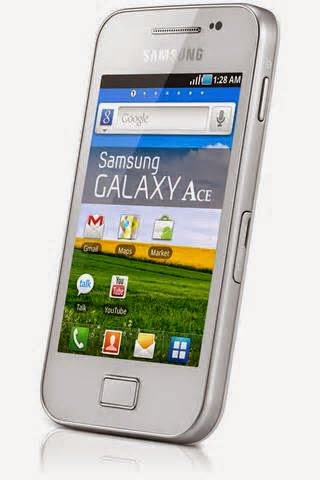
How to Hard Reset Samsung Galaxy Ace S5830/ factory reset


How to Hard Reset Samsung Galaxy S3 mini i8190..!!

How to Hard Reset Samsung Galaxy Ace S5830/ factory reset

How to Hard Reset Samsung Galaxy Ace S5830/ factory reset

If you have forgotten your Samsung Galaxy Ace S5830 unlock password or pattern, you can simply auto-reset and wipe all its previous data yourself. This is called, wiping data or factory resetting.

To do this, follow steps below:

1. Turn Your Phone In Switch Off Mode.

2. Press and hold Home key then press and hold Power key Simultaneously Do not release any key until you see Samsung logo.

3. When Recovery mood appears Select Wipe data and press Power key

4.Select Yes Delete All user Data and press again power key.

5.Wait and Select Reboot Device Option

6. Now Hard reset done

How to Hard Reset Samsung Galaxy S3 mini i8190..!!

How to Hard  Reset  Samsung  Galaxy S3 mini i8190..!!

If you have forgotten your Samsung Galaxy S3 mini i8190 unlock password or pattern, you can simply auto-reset and wipe all its previous data yourself. This is called, wiping data or factory resetting.

To do this, follow steps below:

1.Turn Your Phone In Switch Off Mode.

2.Press and hold Volume up + and Volume Down - and Home key then press and hold Power key Simultaneously.

3.Do not release any key until you see Samsung logo.

4.When Recovery mood appears Select Wipe data and press Power key

5.Select Yes Delete All user Data and press again power key

6.Wait and Select Reboot Device Option

7. Now Hard reset done

How to Hard Reset Samsung Galaxy trendLite S7390


If you have forgotten your Samsung Galaxy Trend Lite S7390 unlock password or pattern, you can simply auto-reset and wipe all its previous data yourself. This is called, wiping data or factory resetting.

To do this, follow steps below:

1.Turn Your Phone In Switch Off Mode.

2.Press and hold Volume up + key and Volume Down - >>Home key then press and hold Power key Simultaneously .Do not release any key until you see Samsung logo.

3.When Recovery mood appears Select Wipe data and press Power key

4.press again power key.

5.Wait and Select Reboot Device Option.

6. Now Hard reset done


READ MORE ON SAMSUNG

How to Hard reset Samsung Galaxy Core i8262/ factory Reset


How to Hard Reset Samsung Galaxy Ace S5830/ factory reset


How to Hard Reset Samsung Galaxy S3 mini i8190..!!

How to Hard Reset Samsung Galaxy S5360/ factory reset..!!

How to Hard Reset Samsung Galaxy S5360/ factory reset..!!

If you have forgotten your Samsung Galaxy S5360 unlock password or pattern, you can simply auto-reset and wipe all its previous data yourself. This is called, wiping data or factory resetting.

To do this, follow steps below:

1.Turn Your Phone In Switch Off Mode.

2.When Recovery mood appears Release Home key.

3.Select Wipe data/ factory Reset , Confirm to continue.

4.Wait and Select.
Reboot Device Option.

5.Now Hard reset done


READ MORE ON SAMSUNG

How to Hard reset Samsung Galaxy Core i8262/ factory Reset


How to Hard Reset Samsung Galaxy Ace S5830/ factory reset


How to Hard Reset Samsung Galaxy S3 mini i8190..!!

How to Hard Reset Micromax Convas HD A116 / Factory Reset..!!

How to Hard Reset Micromax Convas HD A116 / Factory Reset..!!
Performing a factory reset will change your phone back to its original state before the first time you turned it on. If you're passing your phone on to someone else or your phone has a persistent problem that cannot be solved, you can perform a factory reset Factory reset is not a step to be taken lightly. It'll permanently delete all your data and customized settings, and will remove any apps you have downloaded and installed. Be sure to back up any data and files you want to keep before you do a factory reset.

All you need to do is
1. Switch Off Your mobile phone.

2. Press and hold Volume up + key, Volume down - key and Power Key.

3. Select Recovery Mode use volume up key.

4. Multiple options appears on menu.

5. Press any button Then press power button. and press left context menu button and back touch key Simultaneously and hold for at least 3 to 4 sec

6. Now select Wipe data/factory reset and then press enter button, to confirm it press menu button again.

7. Now after that chose reboot and confirm it pressing menu key .

8.Your phone will be reset


READ MORE ON SAMSUNG

How to Hard reset Samsung Galaxy Core i8262/ factory Reset


How to Hard Reset Samsung Galaxy Ace S5830/ factory reset


How to Hard Reset Samsung Galaxy S3 mini i8190..!!

Tuesday, May 27, 2014

Samsung i9000 Galaxy s-restore factory settings...!!!

Samsung i9000 Galaxy s-restore factory settings...!!!

When you restore the factory default settings, all the personal settings you have chosen are reset. Follow these instructions to restore the factory default settings on your Samsung I9000 Galaxy S. NOTE THAT: All phone data will be deleted. Data on the SIM card is not deleted.
Before you start resetting your phone you may chose which method is suitable for you either A or B
A.RESTORE FACTORY DEFAULT SETTINGS USING THE PHONE MENU


  • Press Applications
  • Press Settings
  • Press Privacy
  • Press Factory data reset
  • Press Reset phone
  • Press Erase everything
  • Wait a moment while the phone restores the factory default settings
  • Follow the instructions on the display to configure the phone and prepare it for use


    B.RESTORE FACTORY DEFAULT SETTINGS USING THE PHONE KEYS

  • Make sure the phone is turned off

  • Press and hold the Bottom volume key
  • Briefly press On/Off while still pressing the Bottom volume key
  • Keep pressing the Bottom volume key until an Android logo is displayed
  • Press the Bottom volume key and then On/Off
  • Wait a moment while the phone restores the factory default settings
  • Press the Top volume key to confirm
  • Follow the instructions on the display to configure the phone and prepare it for use
  • Wednesday, April 9, 2014

    SAMSUNG SECRET CODES


    Software version:*#9999#
    IMEI number: *#06#
    Serial number: *#0001#
    Battery status- Memory capacity : *#9998*246#
    Debug screen:*#9998*324# -*#8999*324#
    LCD kontrast:*#9998*523#
    Vibration test:*#9998*842# -*#8999*842#
    Alarm beeper - Ringtone test : *#9998*289# -*#8999*289#
    Smiley: *#9125#
    Software version:*#0837#
    Display contrast:*#0523# -*#8999*523#
    Battery info: *#0228# or*#8999*228#
    Display storage capacity:*#8999*636#
    Display SIM card information:*#8999*778#
    Show date and alarm clock: *#8999*782#
    The display during warning: *#8999*786#
    Samsung hardware version: *#8999*837#
    Show network information:*#8999*638#
    Display received channel number and received intensity:*#8999*9266#
    *#1111# S/W Version
    *#1234# Firmware Version
    *#2222# H/W Version
    *#8999*8376263# All Versions Together
    *#8999*8378# Test Menu
    *#4777*8665# GPSR Tool
    *#8999*523# LCD Brightness
    *#8999*377# Error LOG Menu
    *#8999*327# EEP Menu
    *#8999*667# Debug Mode
    *#92782# PhoneModel (Wap)
    #*5737425# JAVA Mode
    *#2255# Call List
    *#232337# Bluetooth MAC Adress
    *#5282837# Java Version
    Type in *#0000# on a Samsung A300 to reset the language
    Master reset(unlock)#*7337# (for the new samsungs E700 x600 butnot E710)
    Samsung E700 type*#2255# to show secret call log (not tested)
    Samsung A300, A800 phone unlock enter this*2767*637#
    Samsung V200, S100, S300 phone unlock :*2767*782257378#
    #*4773# Incremental Redundancy
    #*7785# Reset wakeup& RTK timer cariables/variables
    #*7200# Tone Generator Mute
    #*3888# BLUETOOTH Test mode
    #*7828# Task screen
    #*#8377466# S/W Version & H/W Version
    #*2562# Restarts Phone
    #*2565# No Blocking? General Defense.
    #*3353# General Defense, Code Erased.
    #*3837# Phone Hangs on White screen.
    #*3849# Restarts Phone
    #*7337# Restarts Phone (Resets Wap Settings)
    #*2886# AutoAnswer ON/OFF
    #*7288# GPRS Detached/Attached
    #*7287# GPRS Attached
    #*7666# White Screen
    #*7693# Sleep Deactivate/Activate
    #*2286# Databattery
    #*2527# GPRS switchingset to (Class 4, 8, 9, 10)
    #*2679# Copycat feature Activa/Deactivate
    #*3940# External looptest 9600 bps
    #*4263# Handsfree mode Activate/Deactivate
    #*2558# Time ON
    #*3941# External looptest 115200 bps
    #*5176# L1 Sleep
    #*7462# SIM Phase
    #*7983# Voltage/Freq
    #*7986# Voltage
    #*8466# Old Time
    #*2255# Call Failed
    #*5376# DELETE ALL SMS!!!!
    #*6837# Official Software Version: (0003000016000702)
    #*2337# Permanent Registration Beep
    #*2474# Charging Duration
    #*2834# Audio Path (Handsfree)
    #*3270# DCS Support Activate/Deactivate
    #*3282# Data Activate/Deactivate
    #*3476# EGSM Activate/Deactivate
    #*3676# FORMAT FLASH VOLUME!!!
    #*4760# GSM Activate/Deactivate
    #*4864# White Screen
    #*7326#
    Accessory
    #*7683# Sleep variable
    #*3797# Blinks 3D030300 in RED
    #*7372# Resetting the time to DPB variables
    #*3273# EGPRS multislot (Class 4, 8, 9, 10)
    #*7722# RLC bitmap compression Activate/Deactivate
    #*2351# Blinks 1347E201 in RED
    #*2775# Switch to 2 inner speaker
    #*7878# FirstStartup (0=NO, 1=YES)
    #*3838# Blinks 3D030300 in RED
    #*2077# GPRS Switch
    #*2027# GPRS Switch
    #*0227# GPRS Switch
    #*0277# GPRS Switch
    #*22671# AMR REC START
    #*22672# Stop AMR REC(File name: /a/multimedia/sounds/voice list/ENGMODE.amr)
    #*22673# Pause REC
    #*22674# Resume REC
    #*22675# AMR Playback
    #*22676# AMR Stop Play
    #*22677# Pause Play
    #*22678# Resume Play
    #*77261# PCM Rec Req
    #*77262# Stop PCM Rec
    #*77263# PCM Playback
    #*77264# PCM Stop Play
    #*22679# AMR Get Time
    *#8999*364# WatchdogON/OFF
    *#8999*427# WATCHDOG signal route setup
    *2767*3855# = Full Reset (Caution every stored data will be deleted.)
    *2767*2878# = Custom Reset
    *2767*927# = Wap Reset
    *2767*226372# = Camera Reset (delete photos)
    *2767*688# Reset Mobile TV
    #7263867# = RAM Dump(On or Off)
     

    ONE TECHNO Copyright © 2012 Fast Loading -- Powered by Blogger